
Skip the install. Get this working in under 2 minutes.
Start a free trial on cloud.anythingmcp.com, add the SFTP (File Search) in one click, then point your AI client (Claude, ChatGPT, Copilot or Cursor) at the generated MCP endpoint. No Docker, no git clone, zero engineering experience required.
Summary
Ask Claude or ChatGPT for an article number and get the price row, the supplier's file name and the list's date, from hundreds of PDF and Excel price lists on your file server. How exact search, Excel rows with column names and dates keep the AI on the current list.
Try asking
Example prompts for SFTP (File Search)
Click any prompt to copy it. Paste into Claude, ChatGPT, Cursor, Gemini, Copilot or OpenClaw to run it against this connector.
Claude is AI and can make mistakes. Please double-check responses.
TL;DR: A price question has one right answer: the row for exactly this article number, in the current list of exactly this supplier. AnythingMCP File Search gets the AI there with three things a "chat with your documents" upload lacks: an exact search that finds AD-24004 and not AD-24040, Excel rows that come back with their column names, and a date on every hit, so the assistant can take the newest list and say which one it used. This guide walks through one lookup, step by step, on a fictional supplier share, with a real answer from Claude, including what happens when two lists disagree.
For the purchasing workflow around it (folder layout, roles, prompts for the team), read the companion recipe Find prices in supplier price lists with AI.
The question, and why it is hard
"What does Adler Zargen charge for article AD-24004 in their current price list?"
On a typical file server that folder holds the 2025 list as PDF, the 2026 list as Excel, a price increase letter as PDF, maybe an Alt subfolder with lists from 2022. A search by meaning (the way most document chat tools retrieve text) ranks passages that sound like the question. Article numbers do not sound like anything: AD-24004 and AD-24040 look the same to an embedding, and last year's list is as similar to the question as this year's. The result is a confident answer from the wrong row or the wrong year.
What the index stores
| In the file | In the index |
|---|---|
| PDF price list | The text of every page, with its page number |
| Excel / CSV / ODS | Every row with the header of its sheet: Sheet "Preise" row 6: Artikel=AD-24004 · Bezeichnung=Innentür · Breite=625 · Höhe=2000 · Material=Edelstahl · Preis=875.4 |
Word, e-mails (.msg, .eml) | The text, e-mails with the text of their attachments |
| Every file | Folder, file name, size and modification date |
Because the row carries its column names, a hit on the article number already says which number is the width and which is the price. No guessing which column is which.
Step 1 — Connect the share and keep old lists out
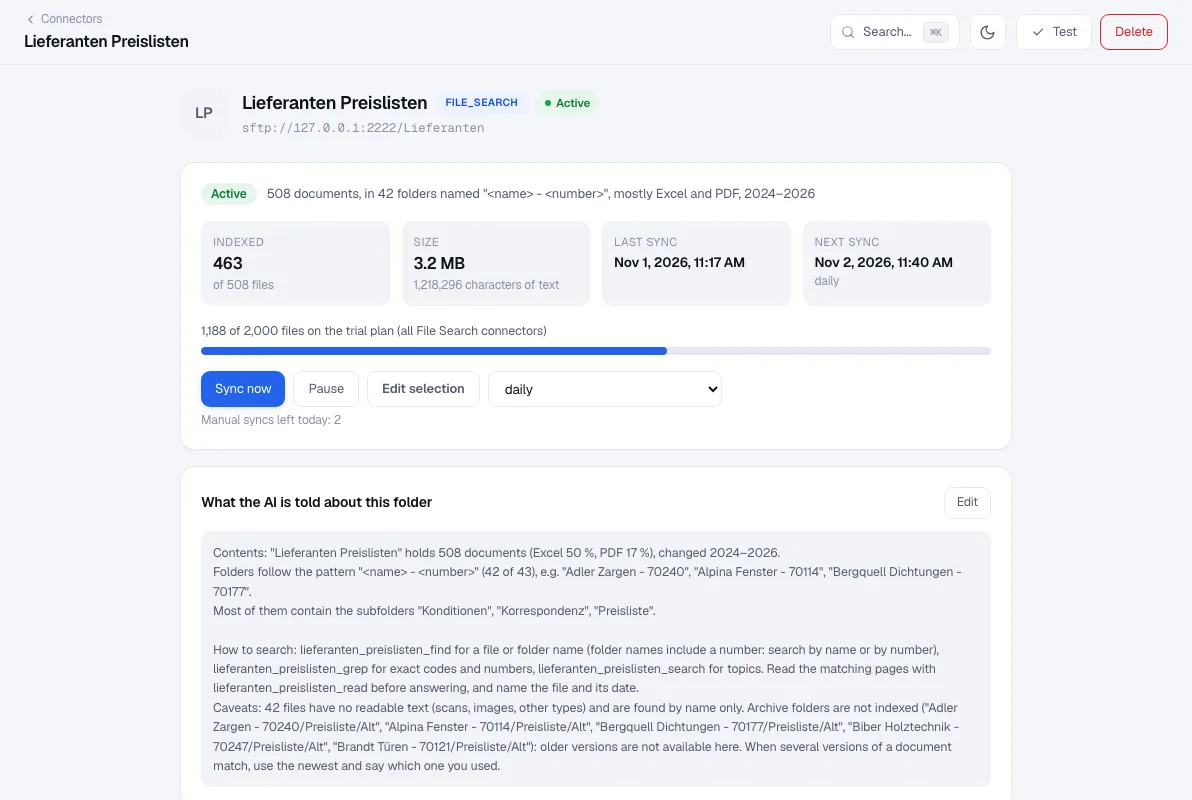
Set up the share as a File Search connector (step-by-step for a NAS, for a mounted network share). Two decisions in the wizard matter for prices:
- Scan: leave archive folders unticked. Folders named like
Alt,Old,Archive…orBackupare unticked automatically. What is not indexed cannot be quoted. Use Changed in to drop files older than a few years if your folders have no archive subfolder. - Describe: tell the AI how your lists work. The draft already says how folders are named and adds "When several versions of a document match, use the newest and say which one you used." Add what only you know, for example: "Prices are list prices in EUR excluding VAT unless the file name says net. A price increase letter overrides the list from the date it names."
Step 2 — Ask
Ask the way you would ask a colleague, with the supplier if you know it:
- "What does Adler Zargen charge for article AD-24004 in their current price list? Quote the row and name the file and its date."
- "Find article 70114-0815 in all price lists and show the newest price."
- "Compare the price of BG-220 in the 2025 and the 2026 Bergquell list."
Step 3 — What the assistant does
“What does Adler Zargen charge for article AD-24004 in their current price list?”
File Searchsupplier_price_lists_grepsupplier_price_lists_findsupplier_price_lists_read_grepsearchesAD-24004literally across the share. Excel hits come back as full rows with the column names; PDF hits with two lines of context and the page number._findlooks at the supplier folderAdler Zargen - 70240and its price lists, with their dates._readopens what can change the answer: both 2026 price lists, the price increase e-mail inKorrespondenzand a note next to it.- The answer names both 2026 lists, because they disagree: the PDF (
Preisliste Adler Zargen 2026.pdf, page 1, net EUR, valid from 01.04.2026) lists AD-24004 Zarge Glas 625 x 1875, 808.31 EUR; the Excel file (Preisliste_2026.xlsx, sheet Preise, row 6) lists a stainless steel interior door at 875.40 EUR under the same number. Claude treats the PDF as current because it is the only one with a stated validity date, notes that neither price matches the 5 % increase announced by e-mail, and recommends confirming with the supplier before using the price.
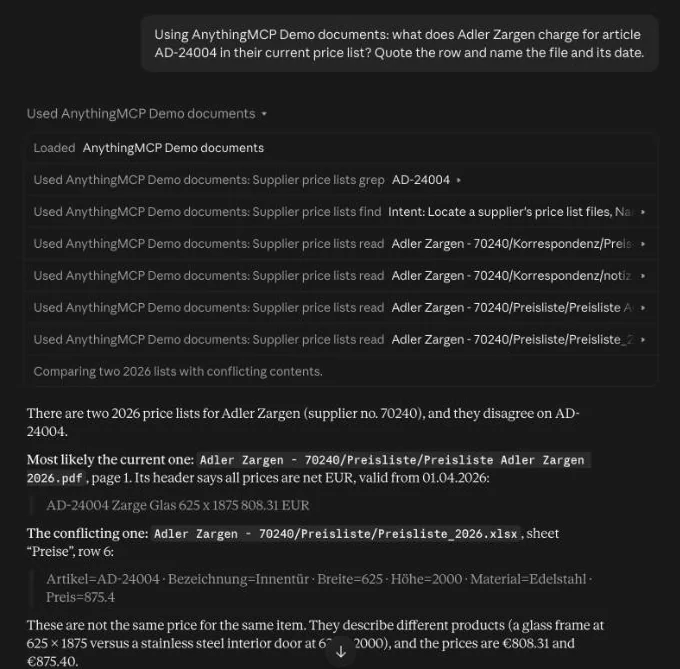
The demo share is fictional, and its two 2026 lists disagree on purpose. That is the case that matters in practice: the assistant does not pick one silently, it shows you both rows and says why it prefers one.
Why the newest list wins
The assistant is not trusted to remember which list is current. Four mechanisms push it there:
- Dates on every result.
_search,_findand_listreturn each file's modification date, and the tool descriptions tell the model to name the file and its date in the answer. - Newest first on request.
_searchand_findaccept a date filter and a "newest first" sort, so "the current list" becomes a query, not a guess. - The connector's instructions (step 1) say to prefer the newest of several versions and to say which one was used.
- Old versions are not in the index when archive folders stay unticked.
File dates do not always settle it. In the demo every file carries the same upload date, so Claude fell back on what the documents say (the validity date in the PDF header) and said so. Equally, a list with a newer file date can be older in fact (someone re-saved the 2024 PDF last week). Keep the year in the file name and a validity date in the list, and the assistant can check both.
Step 4 — Hand over the file
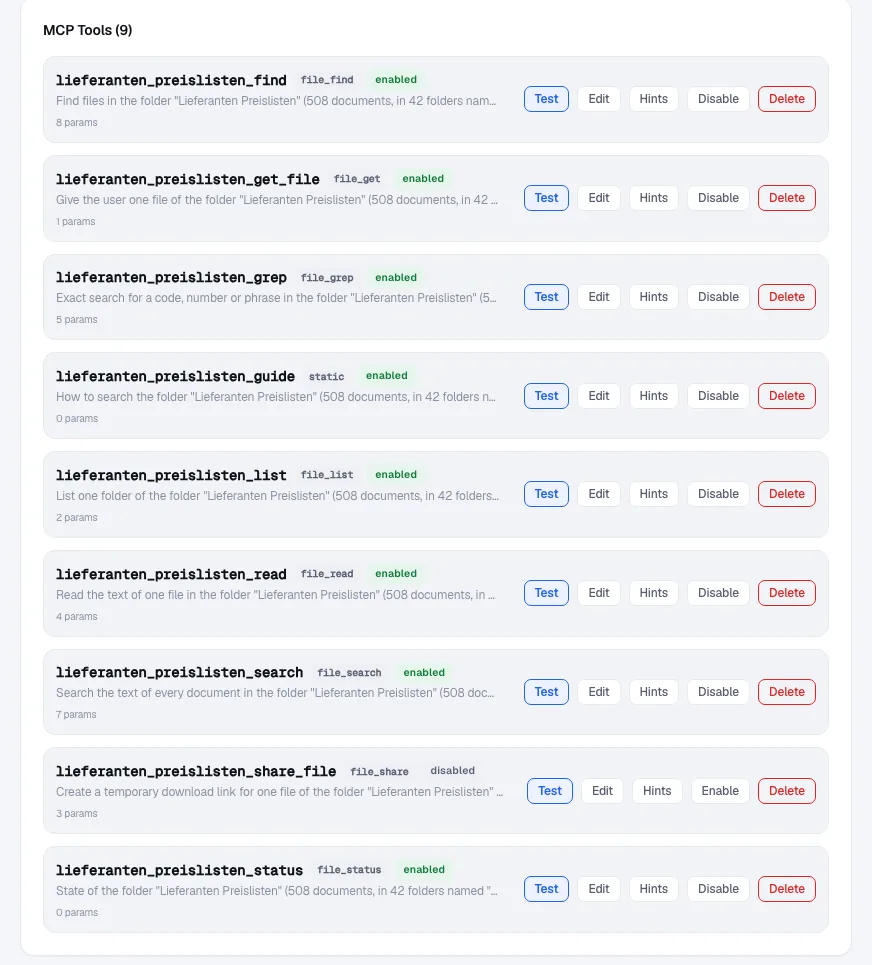
Need the list itself, to forward or to check? Ask "give me that price list as a file". _get_file returns the file as a temporary internal link that works in every AI client (images up to 4 MB are attached too). Public links for people outside the workspace are a separate, switched-off-at-install tool; see Share files from an AI chat.
Good to know
- Large lists stay small in the chat. PDFs are read by page and spreadsheets in blocks of up to 200 rows, so a 600-page catalogue does not fill the context.
- Scanned price lists have no text layer. They are found by name; Enterprise reads them with OCR.
- List price vs. customer price. The share holds supplier list and purchase prices. A customer's net price after discounts lives in your ERP: connect it as a second connector and ask the assistant to combine both.
- New list dropped in? It is picked up on the next sync (daily on Starter and Team, down to every 15 minutes on Enterprise Cloud and every 5 minutes self-hosted Enterprise), or immediately with Sync now.
- Confidential conditions. Put the connector only on the MCP server or role of purchasing, or use folder permissions per role on Enterprise.
Plans
Every AnythingMCP Cloud plan includes File Search within its limits: 500 files on the trial and Starter, 2,000 on Team, up to 50,000 on Enterprise. Self-hosted needs a paid licence or the 30-day trial. A few hundred supplier folders with current lists only usually fit Team. Compare plans or talk to us about Enterprise.
FAQ
Does it work with price lists in other languages? Yes. The search is literal, so article numbers match in any language, and the wizard detects the main language of the folder and tells the AI to search in it.
What if an article number appears in many lists?
_grep returns every hit with its file and date. Ask for "all suppliers that list AD-24004" and the assistant lists them; ask for "the price" and it takes the newest list of the supplier you name, or asks which supplier you mean.
Can it read price tables in PDFs correctly? It reads the text layer of each page, which keeps the order of a table row in most PDFs exported from Excel or an ERP. The assistant quotes the row and the page, so you can check the source in one click.
Related
- Find prices in supplier price lists with AI (the purchasing recipe)
- Search a Synology or QNAP NAS with Claude and ChatGPT, step by step
- Chat with your documents, RAG or File Search: which fits a company file server?
- Folder permissions per role for AI file search
- Search your company file server with AI
- 100 price lookups in one call with code mode
- SFTP server in Claude, ChatGPT, Microsoft Copilot, Gemini
Was this guide helpful?