
Skip the install. Get this working in under 2 minutes.
Start a free trial on cloud.anythingmcp.com, add the Synology NAS (File Search) in one click, then point your AI client (Claude, ChatGPT, Copilot or Cursor) at the generated MCP endpoint. No Docker, no git clone, zero engineering experience required.
Summary
Make the documents on a Synology or QNAP NAS searchable from Claude and ChatGPT in about 20 minutes: SFTP user, File Search wizard (Source, Test, Scan, Describe, Activate), first sync and first question. With screenshots, for AnythingMCP Cloud and self-hosted.
Try asking
Example prompts for Synology NAS (File Search)
Click any prompt to copy it. Paste into Claude, ChatGPT, Cursor, Gemini, Copilot or OpenClaw to run it against this connector.
Claude is AI and can make mistakes. Please double-check responses.
TL;DR: Turn on SFTP on the NAS, create a user that can only read one shared folder, and run the File Search wizard in AnythingMCP: it tests the connection, scans the folder, drafts a description for the AI and starts the first sync. Then add your AnythingMCP server to Claude or ChatGPT and ask about the content of your files. The answer names the file, the page and the file's date. Nothing is ever written to the NAS.
| Facts | |
|---|---|
| Works with | Synology DSM 7, QNAP QTS and QuTS hero, any NAS with SFTP or WebDAV |
| AI clients | Claude, ChatGPT, Microsoft Copilot, Gemini, Cursor, any client with remote MCP servers |
| Access | Read-only: the connector lists and reads, it never writes, renames or deletes |
| Files | PDF, Excel, Word, PowerPoint, Outlook .msg and .eml with attachments, text formats; everything else by name |
| Time | About 20 minutes, plus the first sync |
| Hosting | AnythingMCP Cloud (NAS reachable from the internet) or self-hosted (NAS on your network) |
Cloud or self-hosted: decide first
The wizard is the same in both. What differs is how AnythingMCP reaches the NAS.
- AnythingMCP Cloud connects over the internet. The NAS needs SFTP (or WebDAV over HTTPS) reachable from outside, usually a port forwarding on your router. The Cloud refuses addresses in private networks, so
192.168.x.xdoes not work there. SMB (port 445) is never reached from the Cloud: it does not belong on the internet. - Self-hosted AnythingMCP runs in your network and reaches the NAS on its local address, without opening anything to the internet. It can also index a share mounted into the install over SMB or NFS (Network folder); see Search your company file server with AI for that path.
If the files must not leave your network at all, go self-hosted. Only what a tool returns for a question (a list of matches, the text of a page) ever reaches the AI provider.
Step 0 — Prepare the NAS
Create a dedicated user. It needs read access to the one shared folder you want to search, and nothing else. Never use an administrator account.
Synology DSM
- Control Panel → File Services → FTP, scroll to SFTP and tick Enable SFTP service (port 22 unless you change it).
- Control Panel → User & Group → Create: a user such as
ai-reader. Under Assign shared folders permissions give it Read only on the folder, for exampleDocuments, and No access everywhere else. - If you limit applications per user (Application Privileges), allow SFTP for this user.
- For AnythingMCP Cloud: forward the SFTP port on your router to the NAS, and restrict the source address where your router allows it.
Prefer WebDAV? Install the WebDAV Server package and use HTTPS (port 5006). The wizard's WebDAV / Nextcloud card takes the address.
QNAP QTS / QuTS hero
- Control Panel → Network & File Services → Telnet/SSH: allow SSH and tick Allow SFTP.
- Control Panel → Users → Create: a user such as
ai-readerwith Read only on the shared folder and Deny on the others. Recent QTS versions let you choose which users may sign in over SSH/SFTP; add this user there. - For AnythingMCP Cloud: forward the SFTP port on your router.
On an SFTP login to a NAS, shared folders appear at the top level, so the folder you index is usually /Documents or /Lieferanten, not a volume path such as /volume1/....
Step 1 — Source
In AnythingMCP, open Connectors → New and pick File Search. You can also start from the Marketplace entry Synology NAS (File Search) or QNAP NAS (File Search): they open the same wizard with SFTP and port 22 preset.
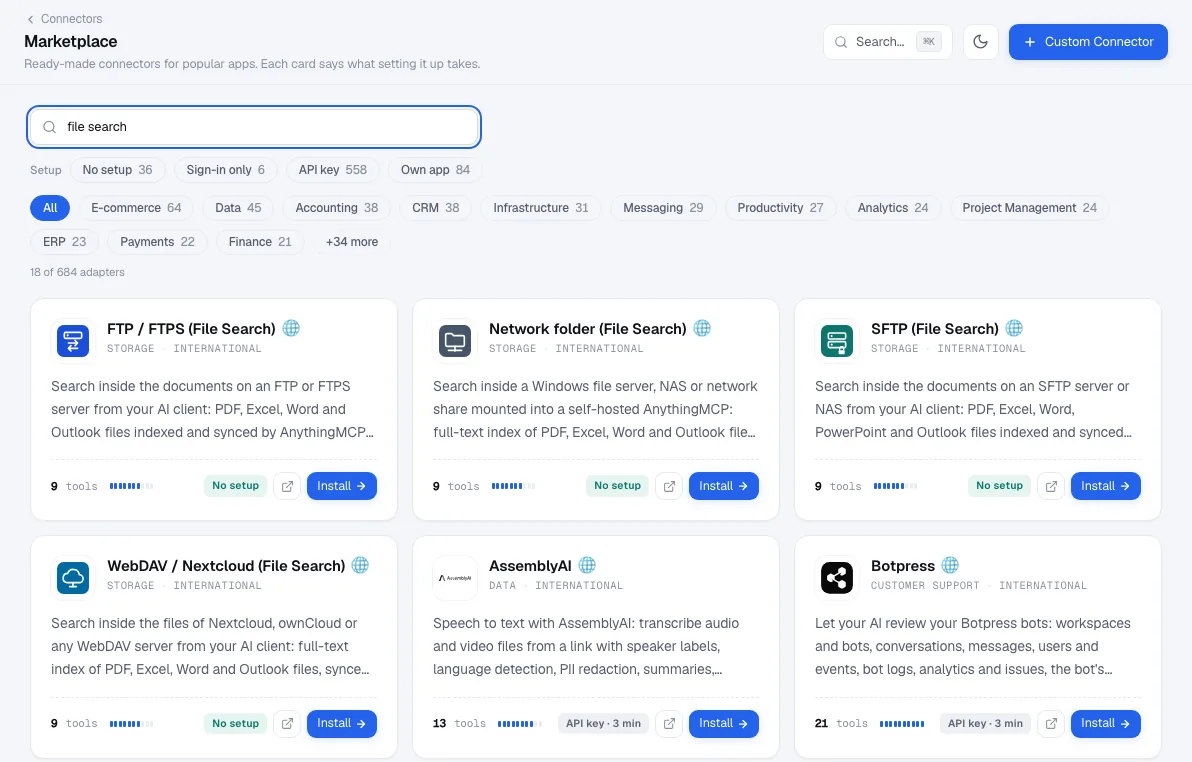
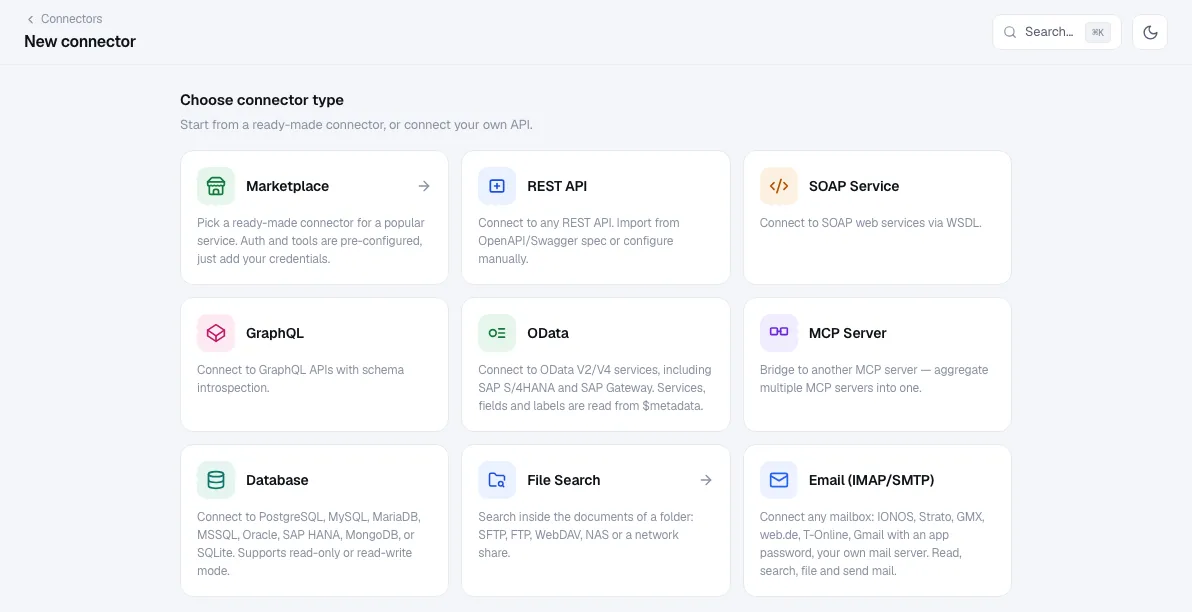
Choose SFTP, or click the Synology NAS or QNAP NAS shortcut. Then fill in:
- Name: what the folder contains, not the server ("Supplier price lists", "Project archive"). The AI sees it in every tool description.
- Server and Port: the NAS address (from outside, the address your router forwards) and the SFTP port.
- User name and Password, or an SSH key.
- Folder to index: the shared folder. Everything below it is included; you pick subfolders after the scan.
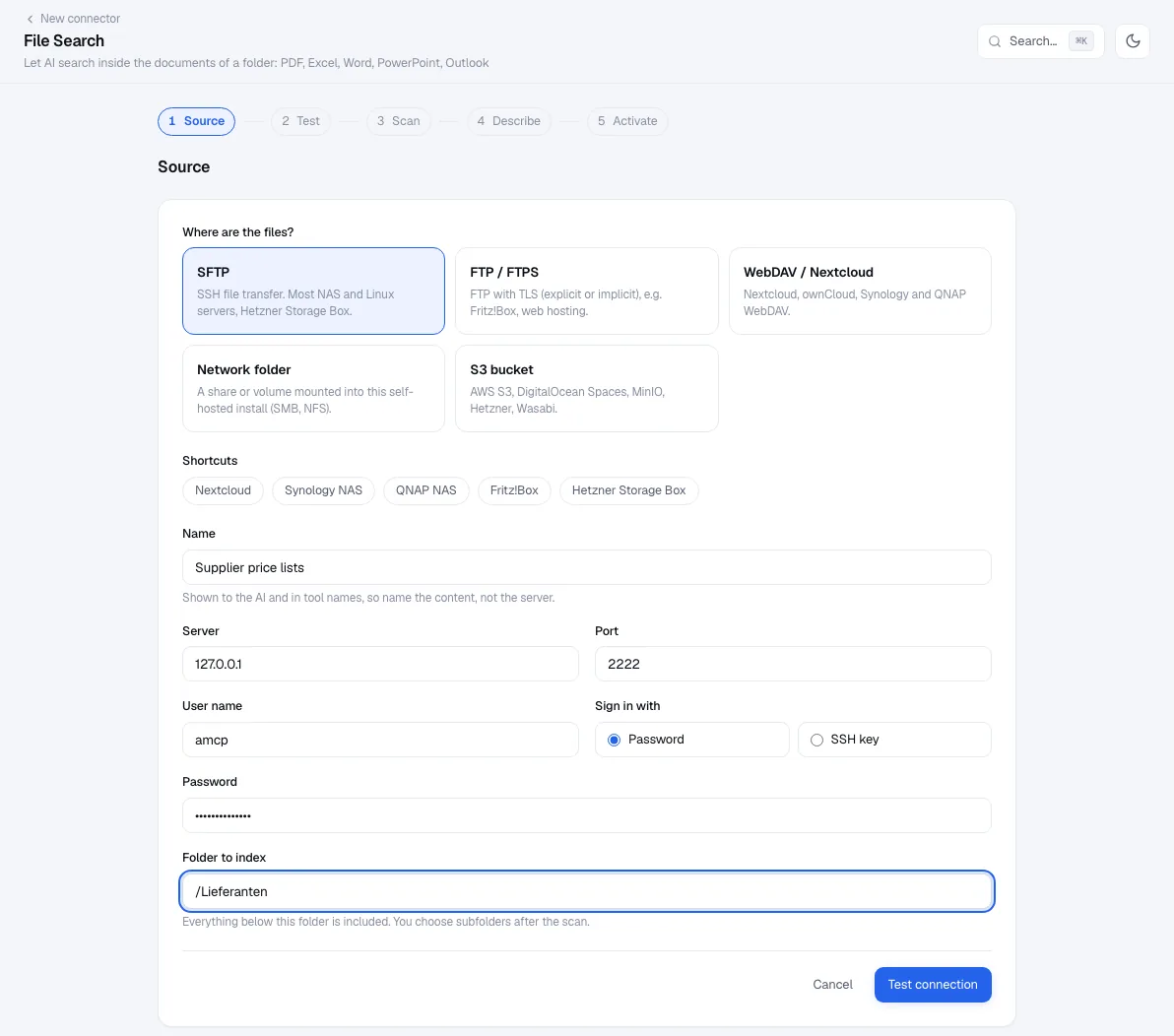
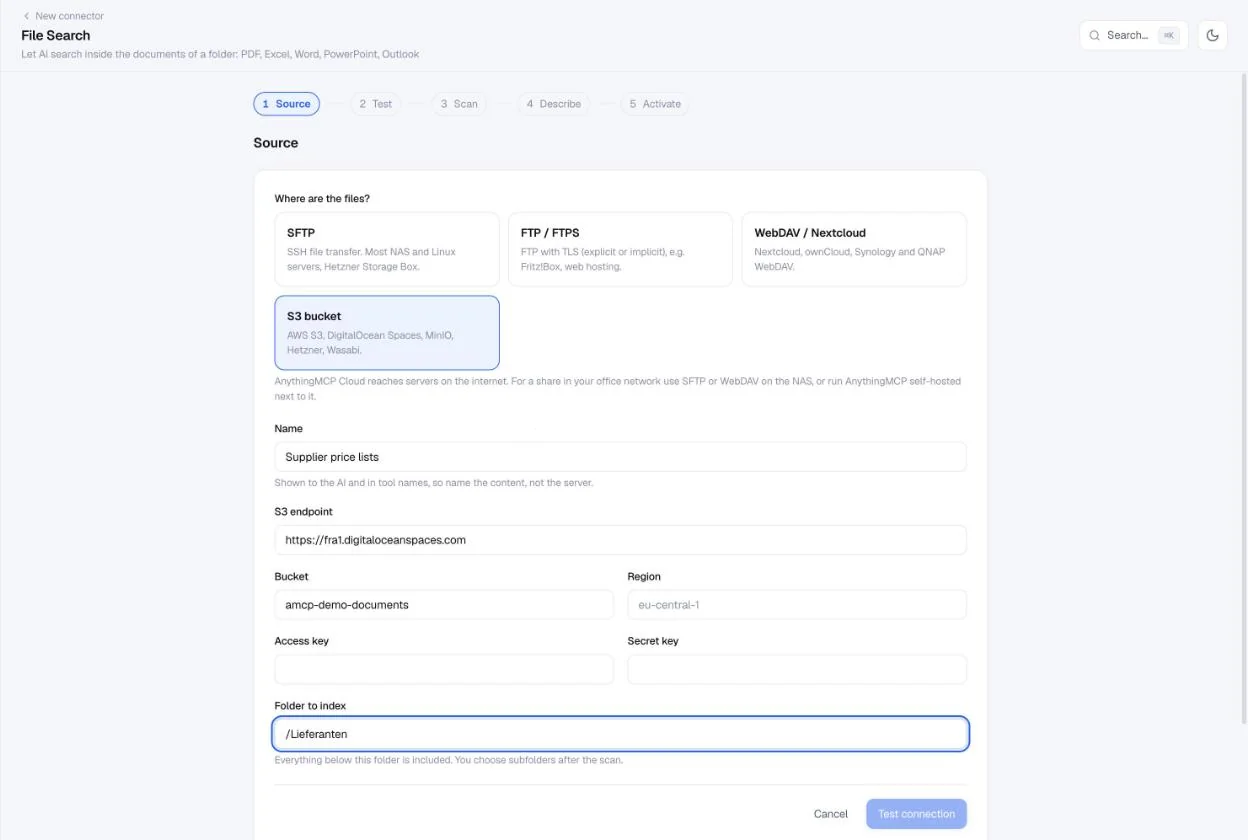
Click Test connection.
Step 2 — Test
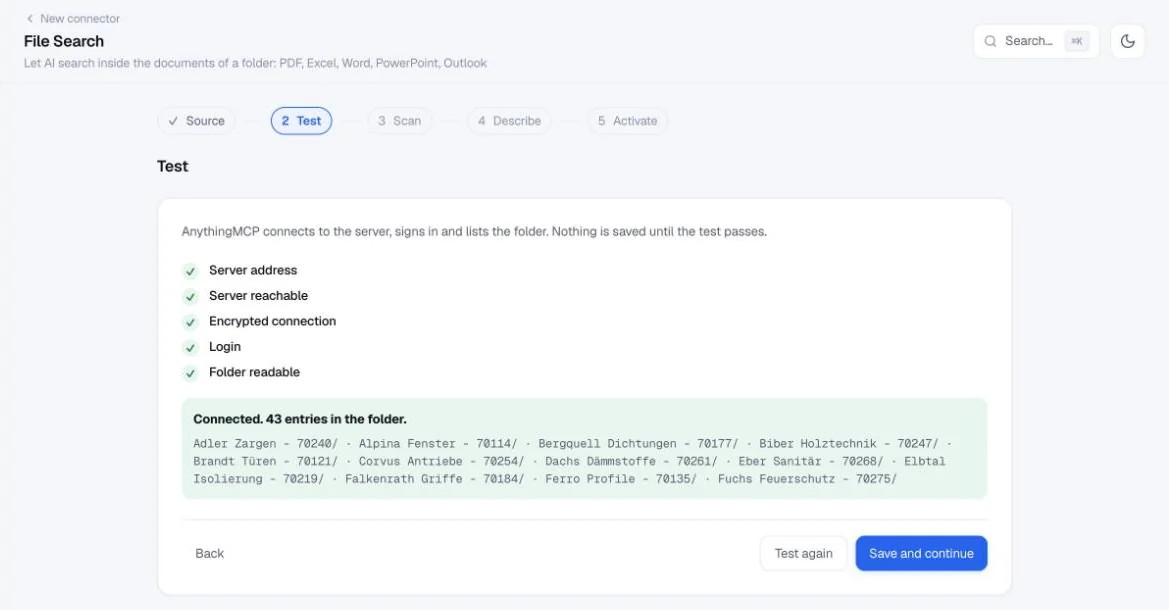
AnythingMCP connects, signs in and lists the folder before anything is saved. The result is a checklist: server address, reachable, encrypted connection, server identity (SFTP and FTPS), login, folder readable.
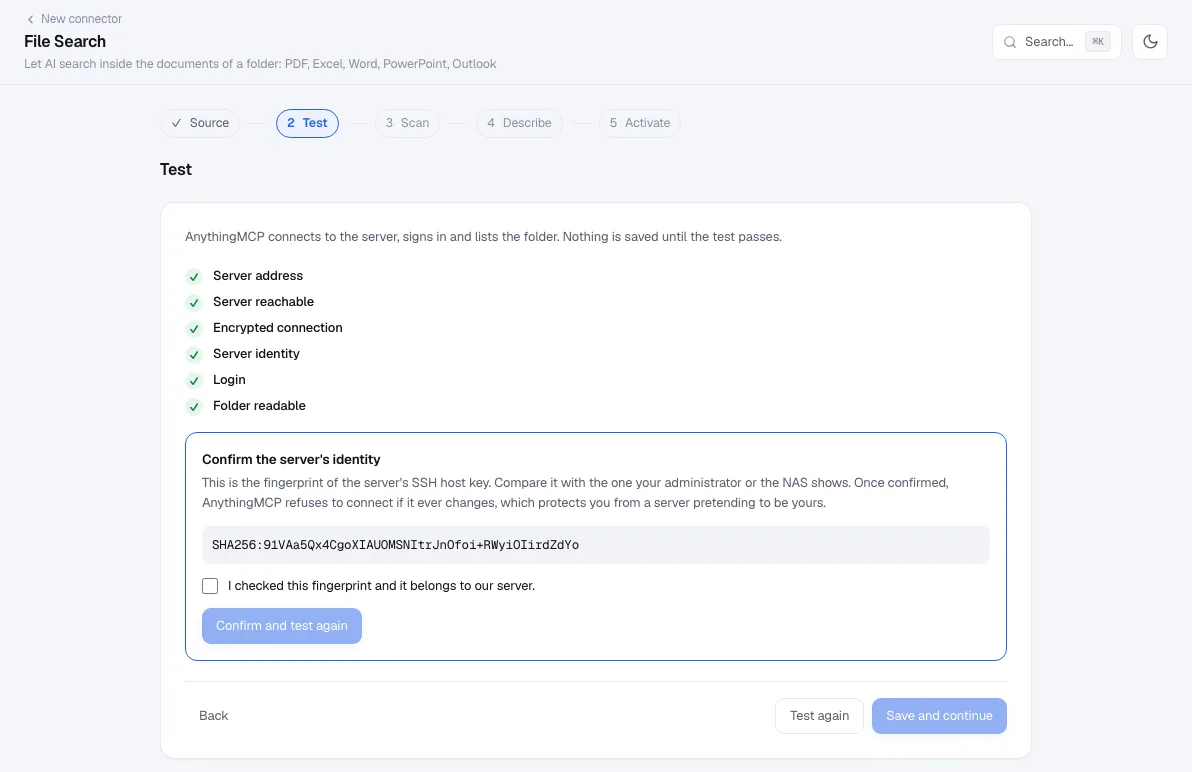
The first time, the wizard shows the NAS's SSH host key fingerprint. Compare it with the NAS's own host keys (signed in over SSH, ssh-keygen -lf on the .pub files in /etc/ssh/ prints them in the same SHA256 form), or ask whoever runs the NAS, tick I checked this fingerprint and click Confirm and test again. From then on AnythingMCP refuses a different key before it sends the password, which protects you from a server pretending to be yours.
When a check fails, the wizard says what to fix:
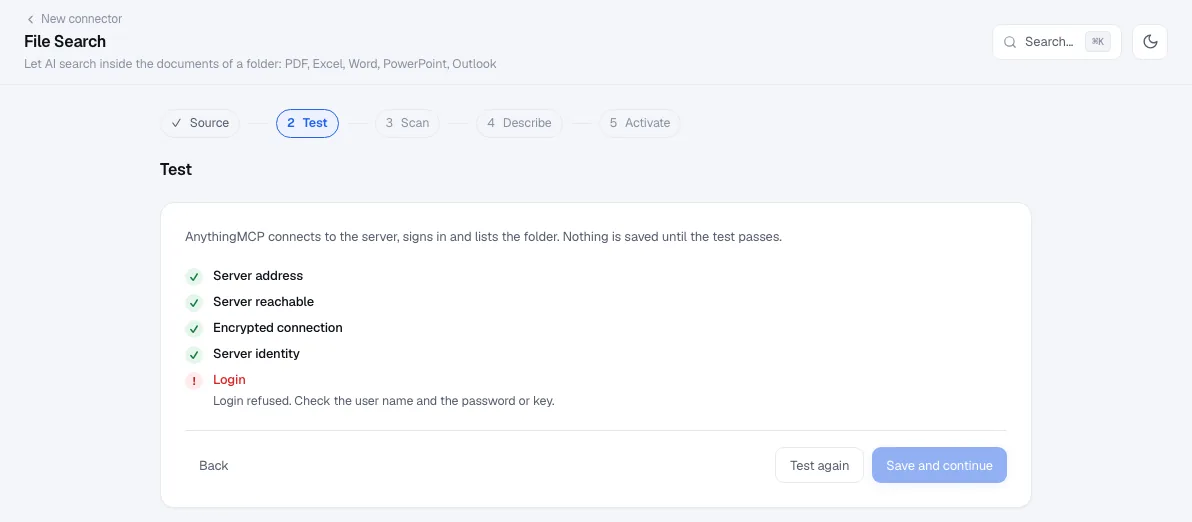
| Failed check | Usual cause on a NAS |
|---|---|
| Server reachable | Port not forwarded, firewall on the NAS, or SFTP not enabled |
| This address is in a private network | You are on the Cloud and entered a LAN address; use the public address, or go self-hosted |
| Login | Wrong password, or the user may not use SFTP (Synology Application Privileges, QNAP SSH access) |
| Folder readable | The path is not the shared folder name as SFTP sees it, or the user has no read permission |
Click Save and continue.
Step 3 — Scan
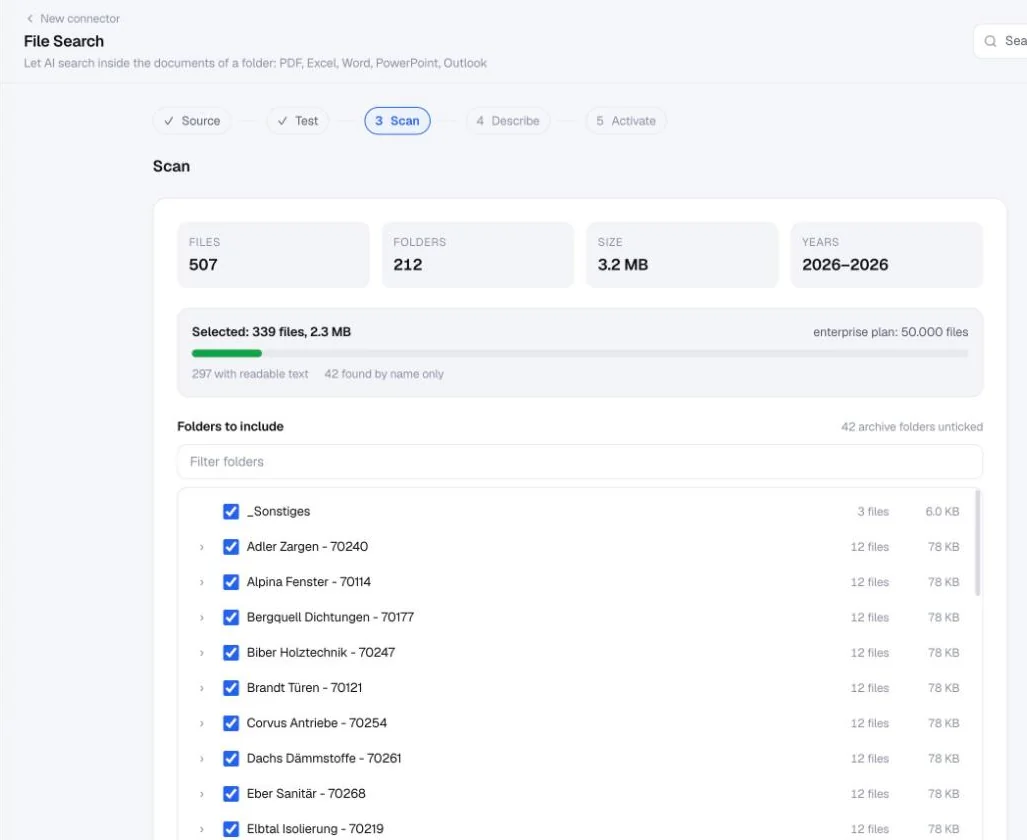
The scan is a dry run: AnythingMCP lists the whole folder without indexing it and shows files, folders, size and years, a tree with the number of files in each subfolder, and the file types.
- Archive folders come unticked. Folders named like
Alt,Old,Archive…orBackupare excluded, so the AI does not quote an outdated version. - Narrow the selection with the folder ticks, the file types and Changed in (an age limit).
- The budget bar compares the selection with your plan, including the files of your other File Search connectors. If the selection is larger than the plan, you cannot continue until it fits or you upgrade.
Step 4 — Describe
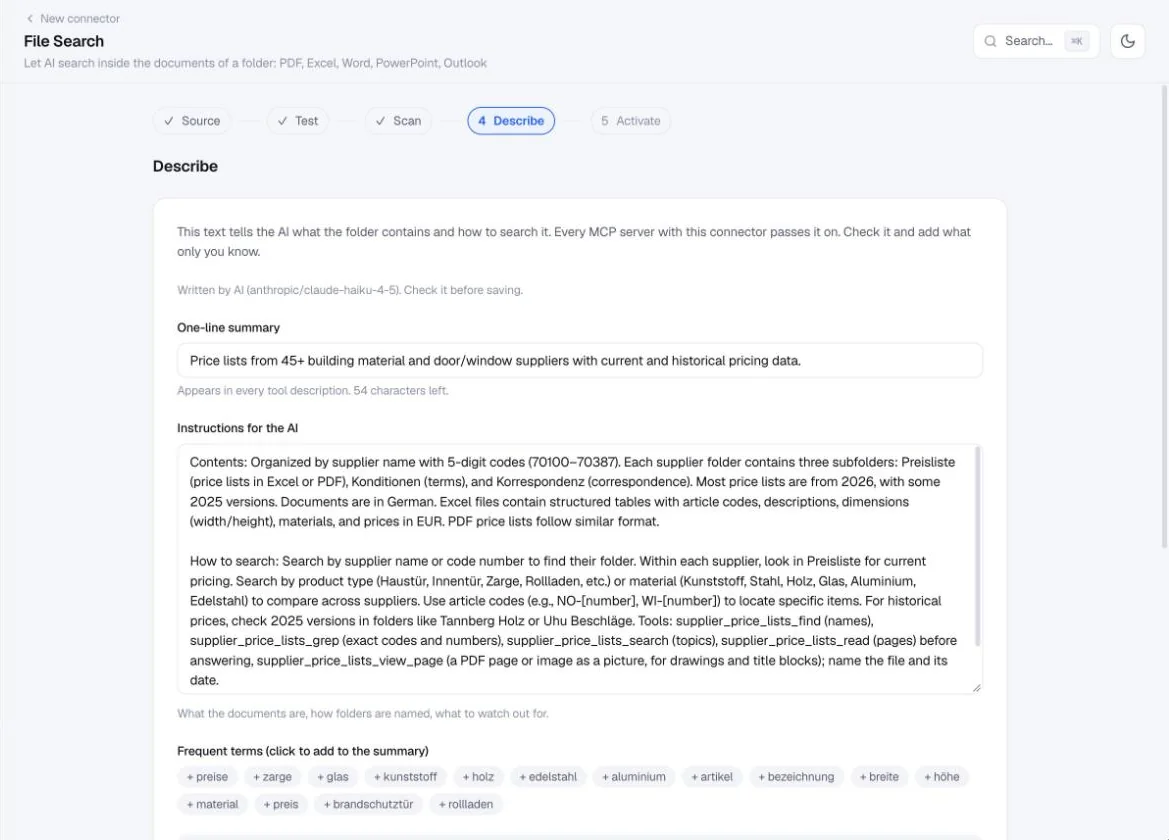
AnythingMCP drafts two texts from the scan, and you edit them:
- One-line summary, which appears in every tool description, for example "340 documents in 42 folders named
<name> - <number>, mostly Excel and PDF, 2024–2026". - Instructions for the AI, which every MCP server with this connector passes on: what the folder holds, how folders are named, which tool to use for which question, and what to watch out for.
Without an AI model the draft is built from the folder structure: naming patterns, recurring subfolders, file types, years, language and frequent terms. If an AI model is configured on the server, the wizard can draft it with AI and states exactly what is sent (folder names, file names and the first 2,000 characters of up to 20 sample files, with personal data masked). Add what only you know: "prices are list prices unless the file name says net", "the newest list in a folder is the valid one".
Step 5 — Activate
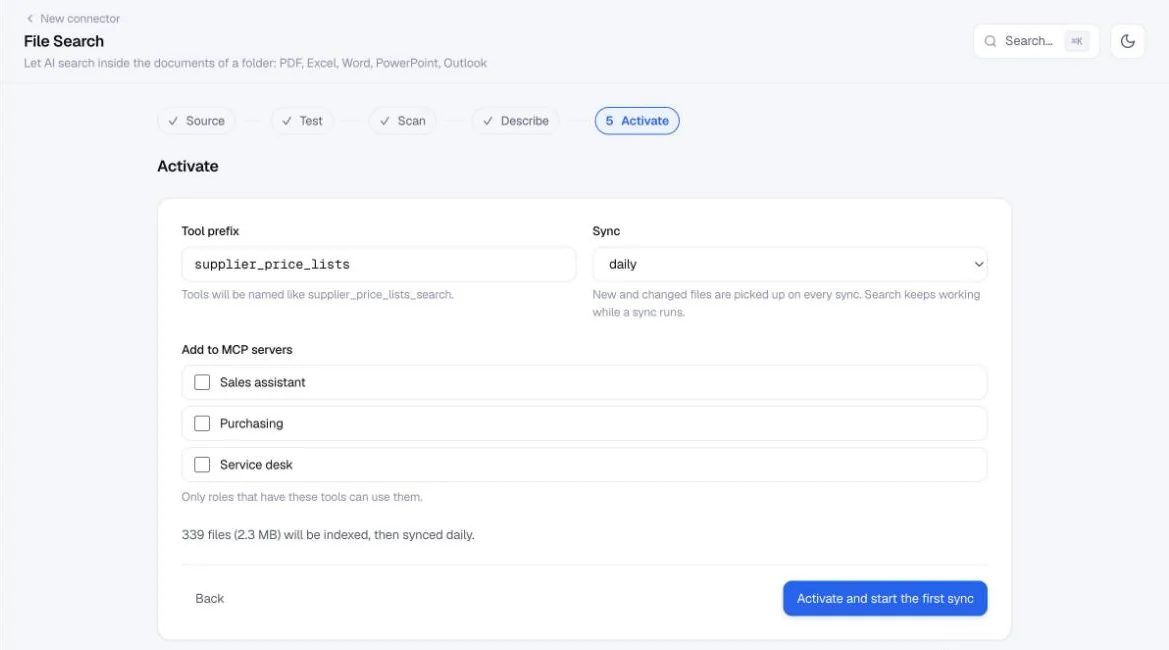
Choose the tool prefix (the tools are named <prefix>_search, <prefix>_read …), the sync interval your plan allows, and the MCP servers that get the connector. Only roles that have these tools can use them. Click Activate and start the first sync.
Watch the first sync
The connector's Files tab shows the state while the first sync runs: files indexed against the plan, size, last and next sync, Sync now (a number per day depending on the plan), Pause and Edit selection, and the description the AI receives.
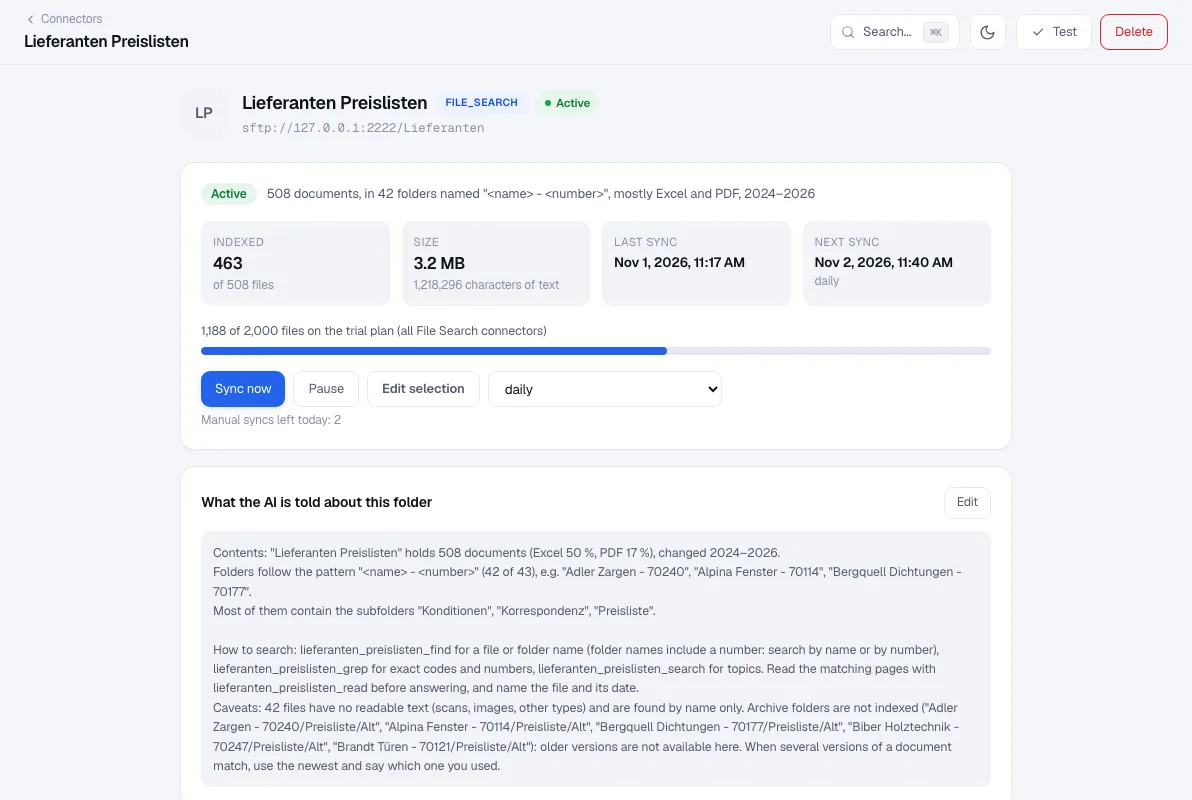
Syncing runs in a separate background service. A large first sync does not slow down your AI clients, and search keeps working on the last index while a later sync runs. After that, only new and changed files are read.
Step 6 — Connect Claude or ChatGPT
In MCP Servers, open the server you chose in step 5 and copy its URL.
- Claude: Customize → Connectors → + → Add custom connector, paste the URL, click Add, then Connect and sign in to AnythingMCP. The connector also appears in the Claude desktop app. Details: Synology NAS in Claude, QNAP NAS in Claude.
- ChatGPT: chatgpt.com/plugins → Add → Add custom MCP server, paste the URL, keep OAuth, create the plugin and sign in. Paid plans only. Details: Synology NAS in ChatGPT, QNAP NAS in ChatGPT.
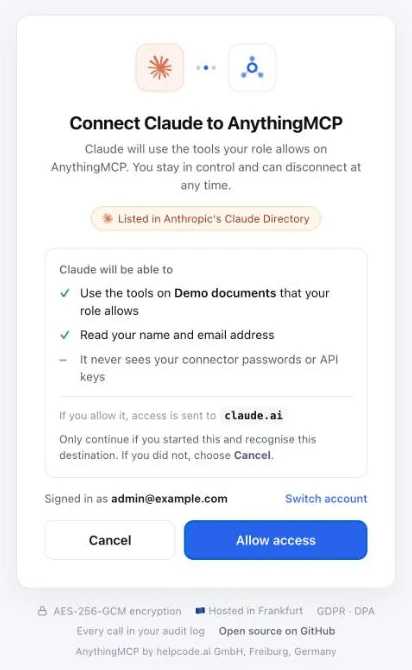
When you click Connect in Claude, AnythingMCP asks you to confirm. Claude gets the tools your role allows on that server, never your connector passwords or API keys.
Step 7 — Ask
Start a new chat and ask about the content of your files, not about the NAS:
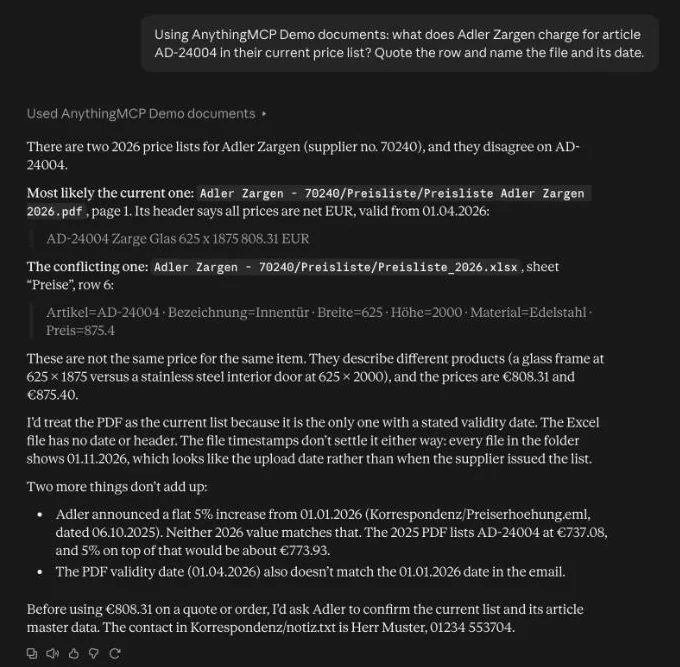
- "What does Adler Zargen charge for article AD-24004 in their current price list? Quote the row and name the file and its date."
- "Which supplier folders have no price list from 2026 yet?"
- "Summarise the conditions of Brandt Türen: payment terms, minimum order, freight."
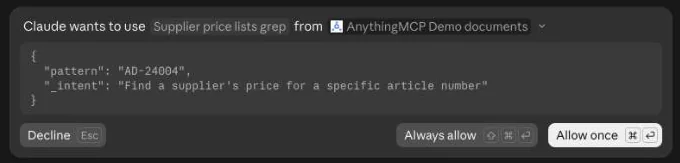
Claude asks before it runs a tool. The prompt shows the tool and its arguments: Allow once runs this call, Always allow stops asking for that tool, Decline refuses it.
The assistant searches the index, opens the page or Excel row that matched and answers with the file name, the page and the file's date. When two documents disagree, it says so and names both instead of picking one silently.
Plans and limits
On AnythingMCP Cloud, every plan includes File Search within its limits, the 7-day trial too: one source and 500 files on the trial and on Starter (Starter adds File Share links), three sources and 2,000 files on Team, both synced daily, and up to 10 sources, 50,000 files, a sync every 15 minutes, OCR for scans and folder permissions on Enterprise. A File Search source counts as a connector toward your plan's connector limit.
Self-hosted, File Search needs a paid licence or the 30-day trial (which has the Team limits): Starter one source and 500 files, Team three and 2,000, Enterprise unlimited with a sync every 5 minutes, OCR and folder permissions. The free Community edition has no File Search after the trial.
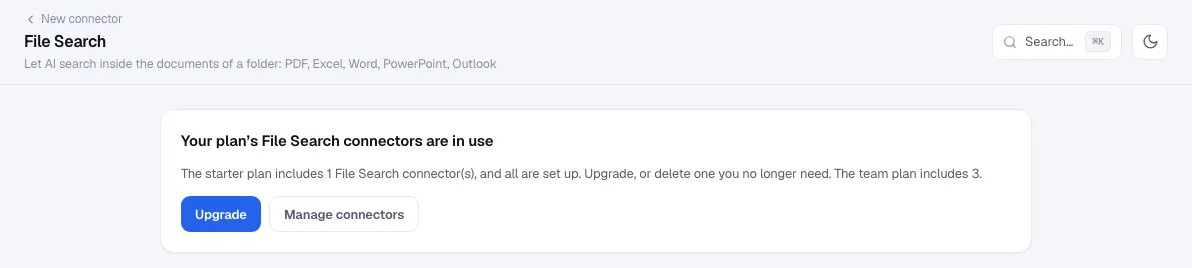
If the folder later outgrows the plan, the sync pauses before downloading anything. The AI keeps searching what is already indexed (and is told that newer files may be missing) until you narrow the selection or upgrade. Compare plans.
FAQ
Is the NAS changed in any way? No. The connector only lists and reads files. There is no tool that writes, renames or deletes, and the NAS user should have read-only rights anyway.
SFTP or WebDAV? Both work. SFTP is built into DSM and QTS and pins the host key; WebDAV over HTTPS is the alternative when SSH is not allowed in your network. The Marketplace entries open the wizard with SFTP.
Do I have to open the NAS to the internet? For AnythingMCP Cloud, yes: forward the SFTP port, ideally restricted by source address. A self-hosted AnythingMCP in the same network reaches the NAS without any port forwarding.
Does AnythingMCP copy the whole NAS? No. It keeps the extracted text of the selected files, not the files. A file is read again only when it changes, or when someone asks for the file itself.
What about scanned PDFs? Scans without a text layer are found by name. Enterprise reads them with OCR.
Can different colleagues see different folders? Yes. Give each folder its own connector and assign it to the right roles, or on Enterprise set folder permissions per role inside one connector.
Related
- Find an article number in PDF and Excel price lists, newest list first
- Find technical drawings by part number with AI
- Search an e-mail archive of .msg and .eml files with AI
- Folder permissions per role for AI file search
- Chat with your documents, RAG or File Search: which fits a company file server?
- Search your company file server with AI
- Search inside Nextcloud and WebDAV files with AI
- Share files from an AI chat as download links
- Synology NAS in Claude, ChatGPT, Microsoft Copilot, Gemini; QNAP NAS in Claude, ChatGPT, Microsoft Copilot, Gemini
Was this guide helpful?