
Summary
Give sales, purchasing and service one AI file search over the company share, and let each role see only its folders. How AnythingMCP Enterprise folder permissions work (allow, deny, deny wins), how to plan the rules, and the alternative without Enterprise.
Try asking
Example prompts for Network folder (File Search)
Click any prompt to copy it. Paste into Claude, ChatGPT, Cursor, Gemini, Copilot or OpenClaw to run it against this connector.
Claude is AI and can make mistakes. Please double-check responses.
TL;DR: An AI assistant that can search the company share must not show the purchase conditions to the trainee or the HR folder to everyone. AnythingMCP controls that on three levels: who gets the file tools at all (MCP roles), which folder is a connector (one connector per folder), and, on Enterprise, folder permissions per role inside one connector: allow and deny rules on folders, where deny wins. The rules apply to every File Search tool, so a hidden folder is not found, not listed, not read and not handed out as a file.
Three levels of control
| Level | What it decides | Edition |
|---|---|---|
| MCP roles | Which roles get a connector's tools at all, through the MCP servers and tool permissions of their role | Every edition |
| One connector per folder | "Knowledge base" for everyone, "Supplier conditions" for purchasing: two connectors, two audiences | Every plan with File Search |
| Folder permissions | Inside one connector, which folders each role may see | Enterprise (Cloud and self-hosted) |
The first two are enough for a handful of clearly separated folders. Folder permissions pay off when one share has many departments and you want one search across what each person may see, instead of five connectors and five sets of tools.
How folder permissions work
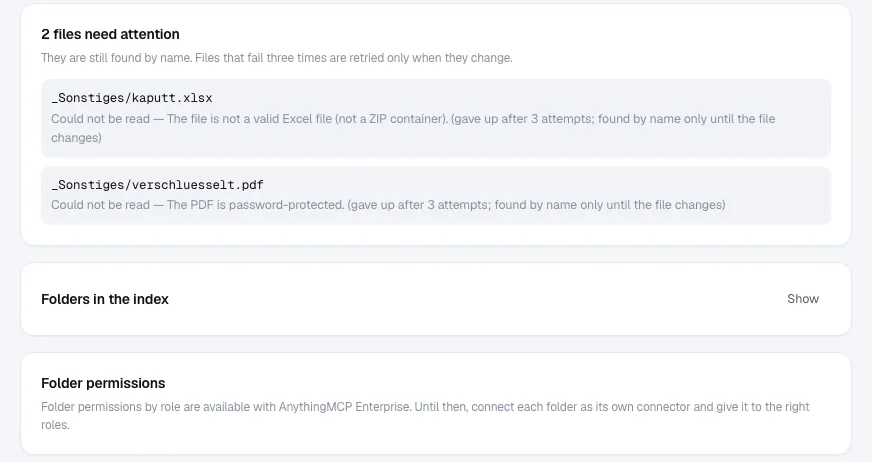
Open the connector's Files tab and go to Folder permissions. Each rule has three parts: a role, Allow or Deny, and a folder of the connector (a path relative to the folder you indexed, such as Purchasing/Conditions). A rule covers the folder and everything below it.
- A role without rules sees everything. Rules are per role: a rule for one role never changes what other roles see.
- Allow limits a role. Allow rules restrict a role to those folders and their subfolders. A role with no Allow rules is unrestricted.
- Several roles add up. A user with several roles sees the folders any of their roles allows. If one of their roles has no Allow rules, that role is unrestricted, so the user sees every folder.
- Deny always wins. A Deny rule hides a folder, also inside a folder an Allow rule opened, and whichever of the user's roles it belongs to.
- Administrators see every folder. Workspace administrators are never restricted, so they can check what the connector holds.
- Every tool obeys. Search, find, list, exact search, read and the file link all work inside the user's folders.
Plan the rules: an example
An invented wholesaler connects its share Company with these top-level folders: Products (data sheets, catalogues), Sales (offers, customer files), Purchasing (price lists, conditions, contracts), Service (manuals, reports) and Management.
| Role | Rule | Folder |
|---|---|---|
| Sales | Allow | Products |
| Sales | Allow | Sales |
| Purchasing | Allow | Products |
| Purchasing | Allow | Purchasing |
| Purchasing | Deny | Purchasing/Contracts |
| Service | Allow | Products/Datasheets |
| Service | Allow | Service |
The result: sales asks about a customer's last offer and gets an answer from Sales; purchasing finds prices in Purchasing but not the framework contracts; service finds manuals and data sheets. None of the three roles sees Management, because each is limited to its allowed folders. A Management role without rules sees everything, and so do the administrators.
Write the rules from the roles' point of view: start with what each role needs (Allow), then cut out the exceptions (Deny). It reads like a short list, and it is easy to review with the department heads.
Keep in mind that rules narrow the roles they belong to and nothing else. A user who has the connector's tools but none of the restricted roles sees every folder. Decide first who gets the tools at all (MCP roles), then restrict within those roles; and to hide a folder from a role that should otherwise see everything, give that role a Deny rule.
Test it
- Use a test user who is not a workspace administrator and has only the role you want to check (or ask a colleague in that role).
- Sign in from Claude or ChatGPT with that user (OAuth, not an API key), and ask something that lives in an allowed folder, then something from a denied one, for example "find the framework contract with Kessler".
- The first returns the file and page; the second returns no match, as if the folder did not exist.
- Check the audit log: every search and read is recorded with the user, the tool and the arguments.
Without Enterprise: one connector per folder
On Starter and Team (and self-hosted Community during the trial), connect each folder that has its own audience as its own File Search connector, and give each connector to the MCP servers and roles that should have it. The connector's tool prefix then tells the AI which folder it is searching (products_search, purchasing_search). The number of File Search connectors per plan is the limit: one on Starter, three on Team. Compare plans.
What else Enterprise adds to File Search
- Workspace policy: public share links on or off, the longest link validity, AI drafting of folder descriptions on or off, plain (unencrypted) FTP on or off.
- OCR for scanned PDFs.
- Sync every 15 minutes on the Cloud, every 5 minutes self-hosted, and up to 50,000 files on the Cloud (unlimited self-hosted).
Single sign-on and SCIM, which keep the roles in line with your directory, are part of Enterprise self-hosted or on a dedicated instance. See AnythingMCP Enterprise.
FAQ
Do folder permissions change anything on the file server? No. They decide what AnythingMCP returns to each user. The NAS or share keeps its own permissions, and the File Search account should have read-only rights there.
Can the AI get around the rules by asking differently? No. The rules are applied on the server for every tool call, before results are put together. The model never receives files outside the user's folders, so there is nothing to talk it into. The one exception is not the model but the connection: calls made with an MCP API key are not tied to a user, so folder rules do not apply to them.
Do the rules follow the permissions of the share itself? No, AnythingMCP does not read the share's ACLs. You set the rules per role in AnythingMCP. Keep them short: a handful of Allow rules per role and a few Deny exceptions.
Related
- MCP governance, user roles and permissions
- Search a Synology or QNAP NAS with Claude and ChatGPT, step by step
- Find an article number in PDF and Excel price lists
- Search an e-mail archive of .msg and .eml files with AI
- Chat with your documents, RAG or File Search: which fits a company file server?
- Search your company file server with AI
- Share files from an AI chat as download links
Was this guide helpful?